
Bitrix24 connection instructions
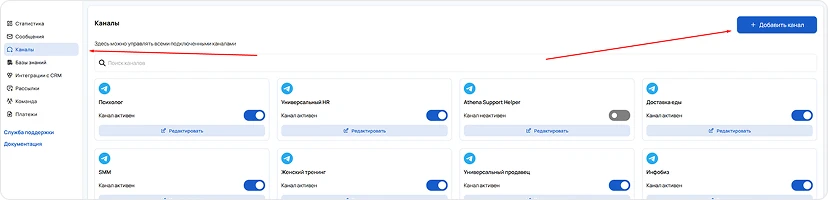
- Go to the channels section -> Add channel.
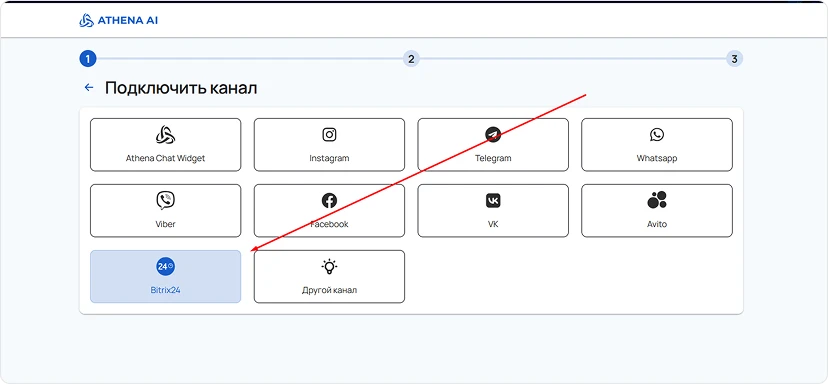
- We choose Bitrix24.
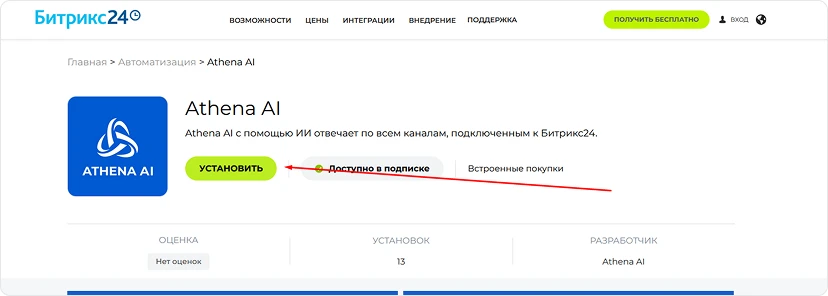
- Next, go to the integration installation page -> Click “Install”.
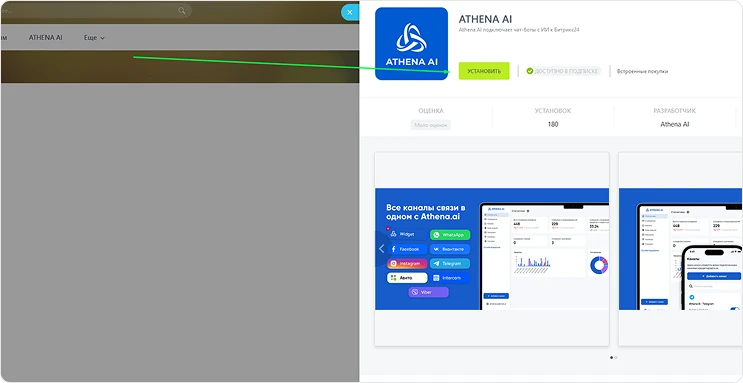
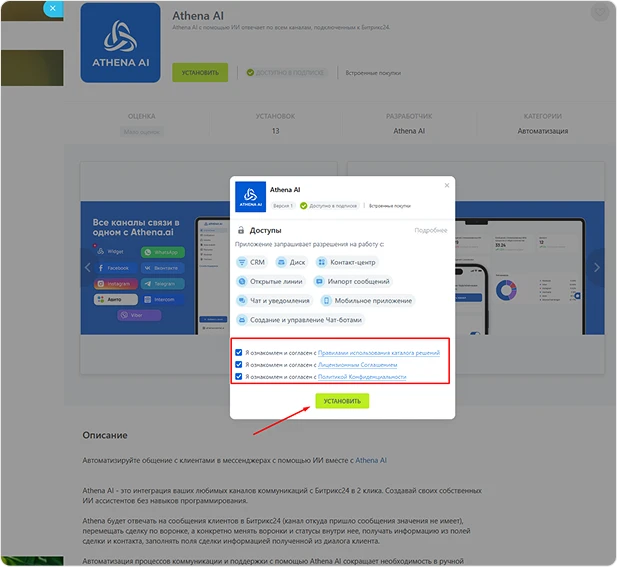
- After installing the application, go to it and enter the login and password for your personal account.
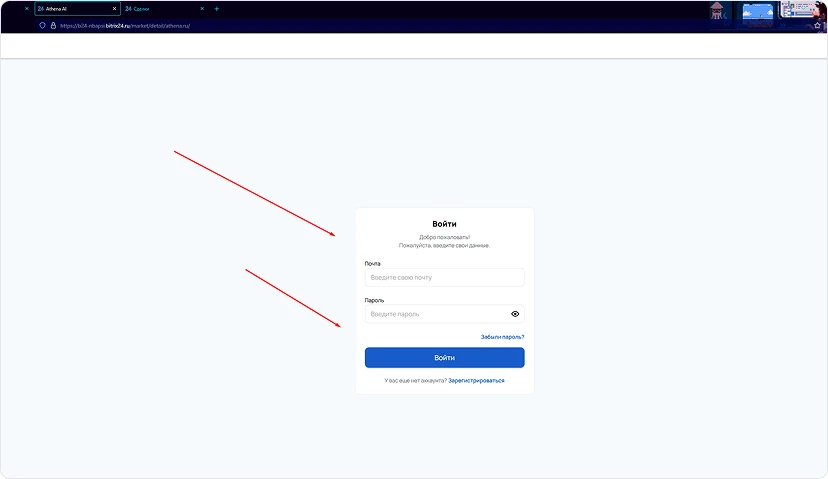
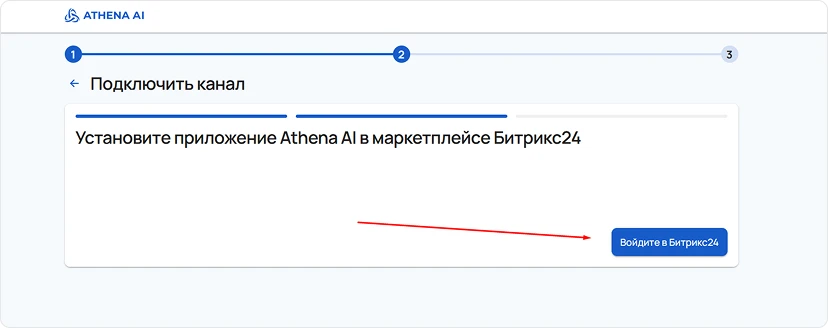
- Enter the channel name.
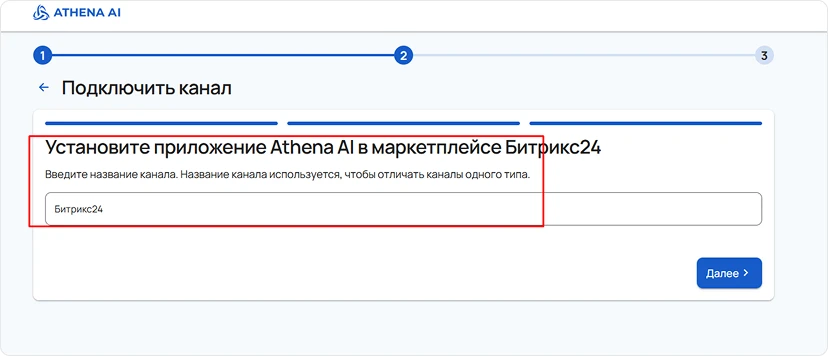
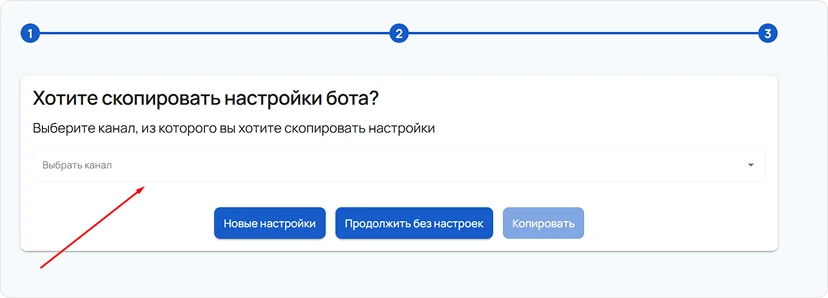
- Copy (if any) or create new bot settings.
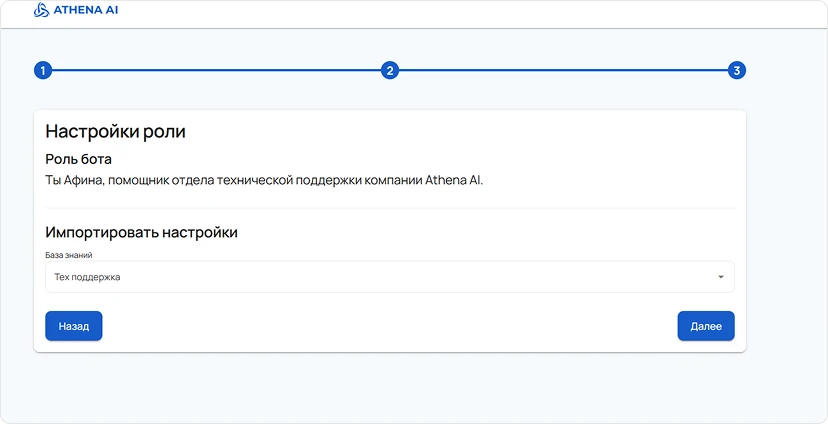
- We set up a knowledge base (if any).
- The channel is connected.
Bitrix24 and Athena settings.
Go to the Bitrix24 channel settings.
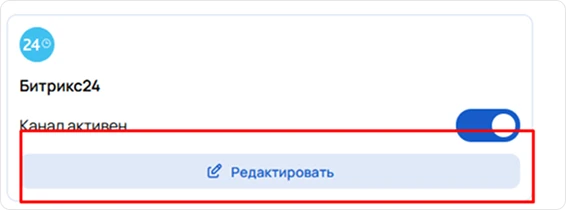
At this stage, you need to set the parameters for Bitrix24 and Athena AI:
- Select the operating mode that matches your Bitrix24 operating mode – leads or deals.
Select the desired funnels and stages where the bot will work by default.
* If you do not specify funnels and stages, the bot will work on all available stages and funnels by default.
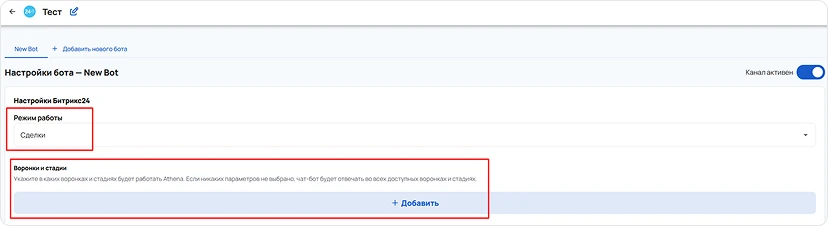
- Set the default fields that Athena AI will fill in by clicking the "Add" buttonand selecting the desired parameters.
- Specify a display name for the bot (if required) – If you specify a specific name for the bot, it will be displayed in responses in Bitrix24 if the setting to show manager names in correspondence is enabled.
Select an open line that Athena will be connected to and will work by default.
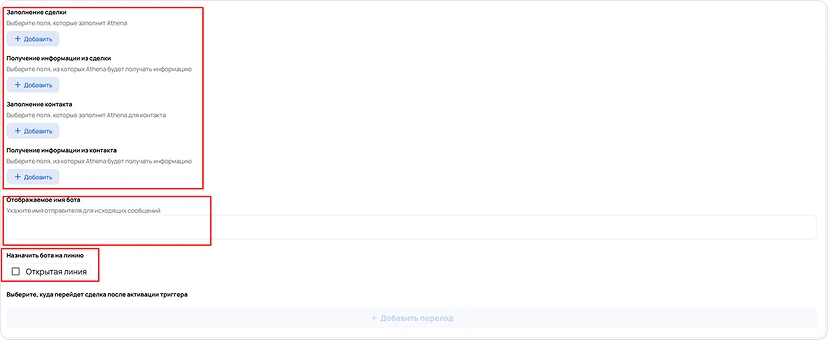
- Set trigger execution parameters.
Athena AI can perform various triggers, assigned tasks, and move the transaction to the appropriate stage once the goal is achieved. To do this, select the desired funnels, stages, and triggers.

Multi-agents
Athena allows you to connect multiple agents to perform different tasks at each stage of interaction, creating a flexible and multi-level communication system.
You can assign different bots to different lines and funnels, by giving them unique tasks and instructions on how to behave.
- Create the required number of bots in the settings section — Channels -> Bitrix24.
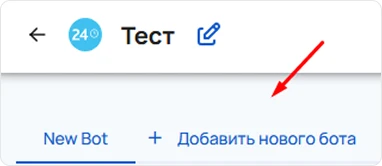
- Next, configure Bitrix24 settings –> parameters, operating mode, variables, stages.
- Then go to “Basic bot settings” and enter the required data:
Name, time, role, instruction, behavior, and tasks.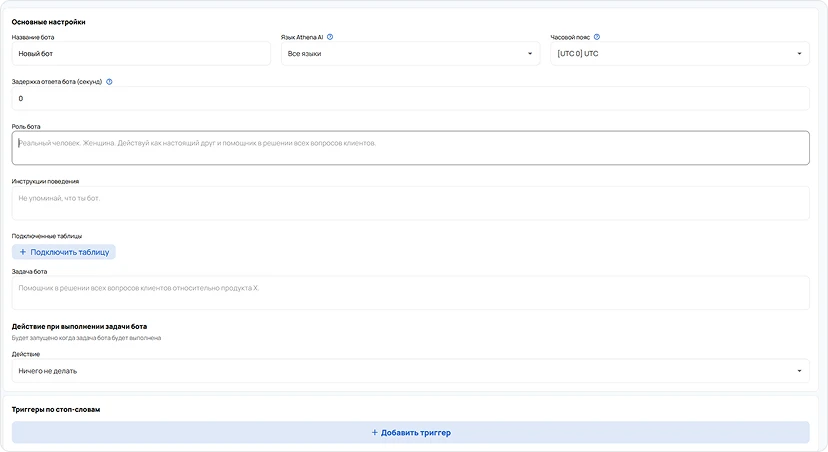
- Assign the desired open line where the bot will work by default.

- Channel setup is complete.
Connecting lines in Bitrix24.
- We go to the contact center to create an open line and connect Athena AI to work in it.
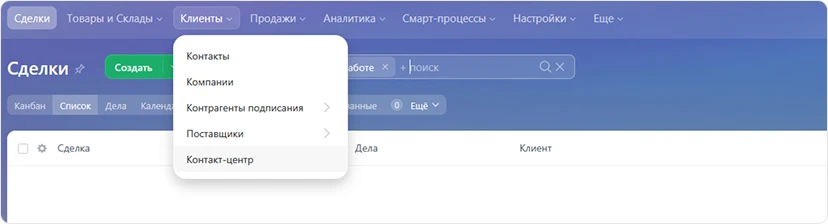 In this menu, you need to select all the messengers and websiteswhere Athena AI will work on the incoming line.
 - Select the desired one -> Go to settings:
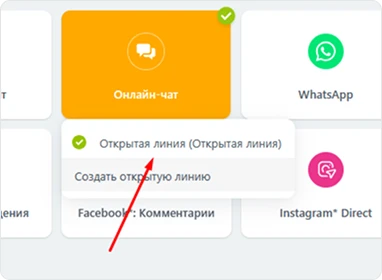
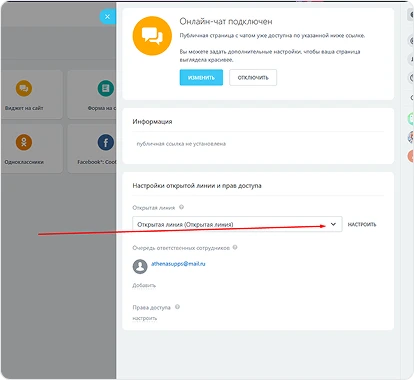
- In this menu you can set up a line to perform tasks.
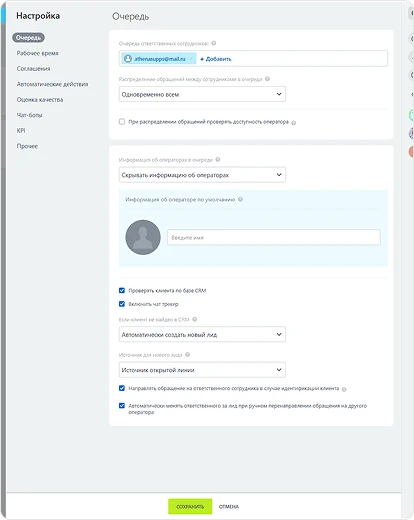
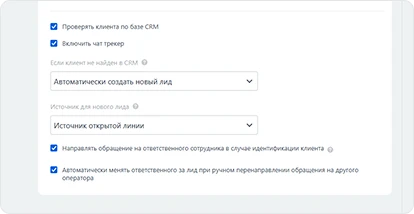
- Done, the open line is established, and Athena AI will be included in the conversation by default according to the settings.Important!The chatbot will only work if Bitrix24 is available and deals are created.