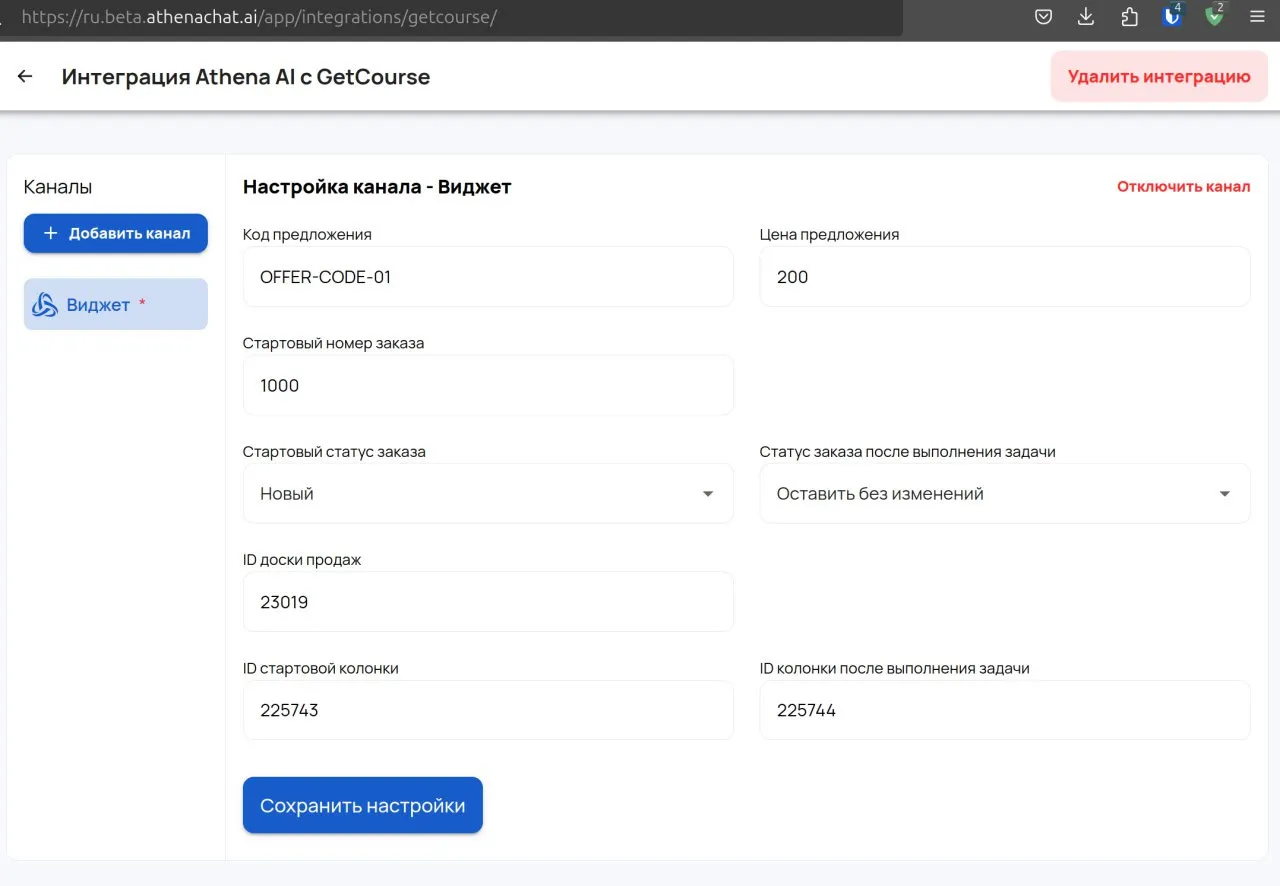
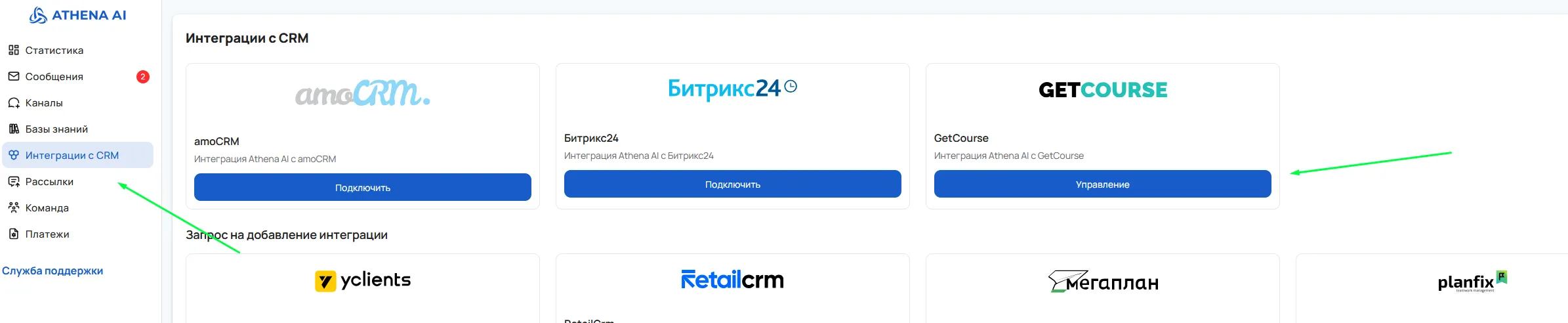
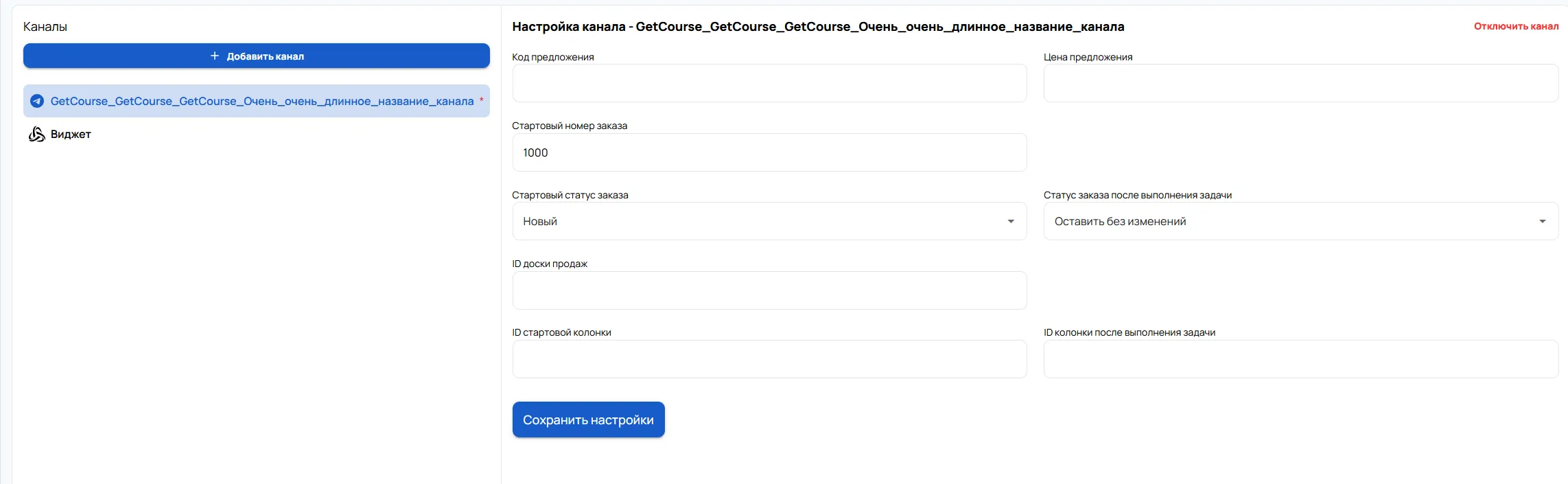
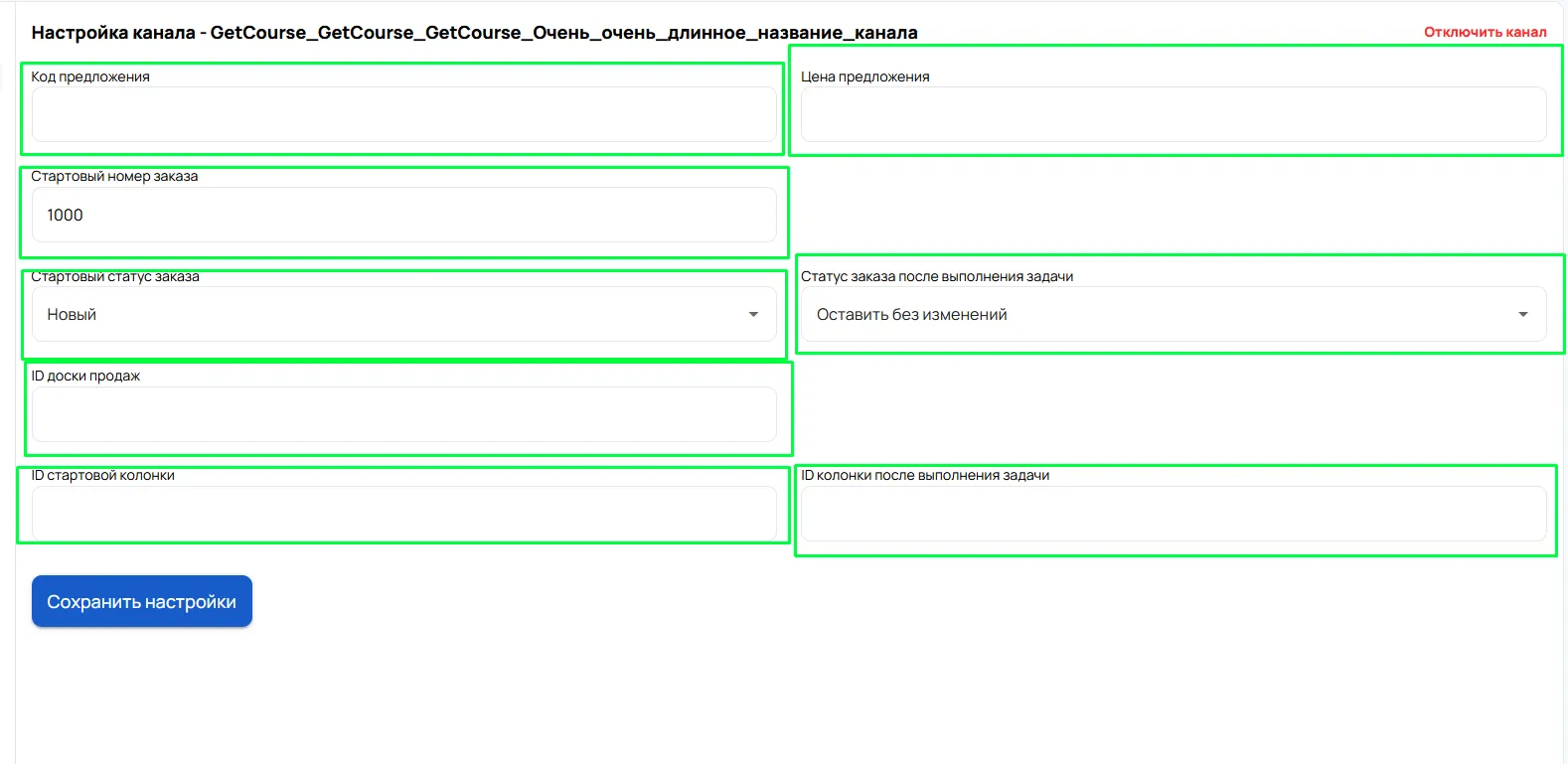
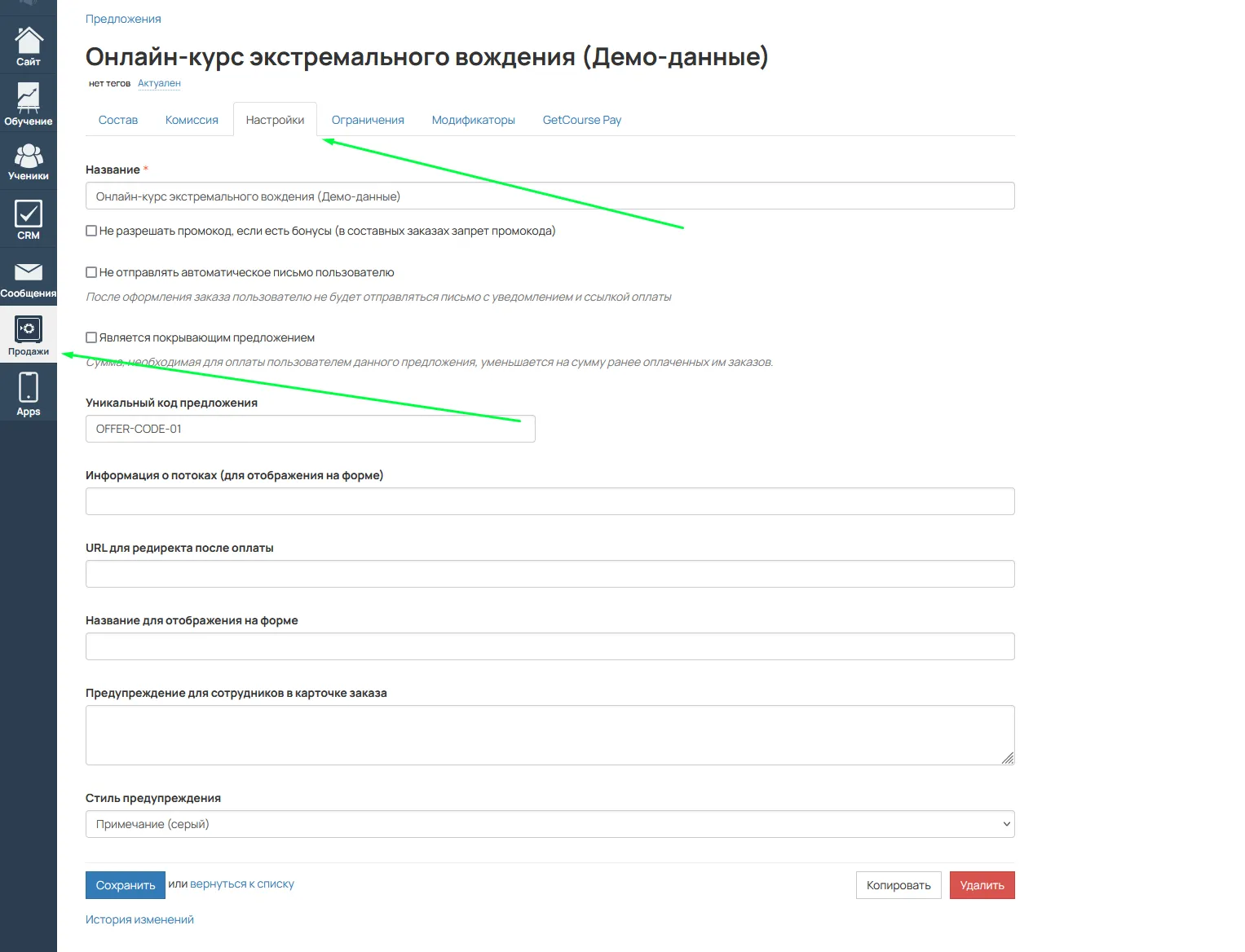
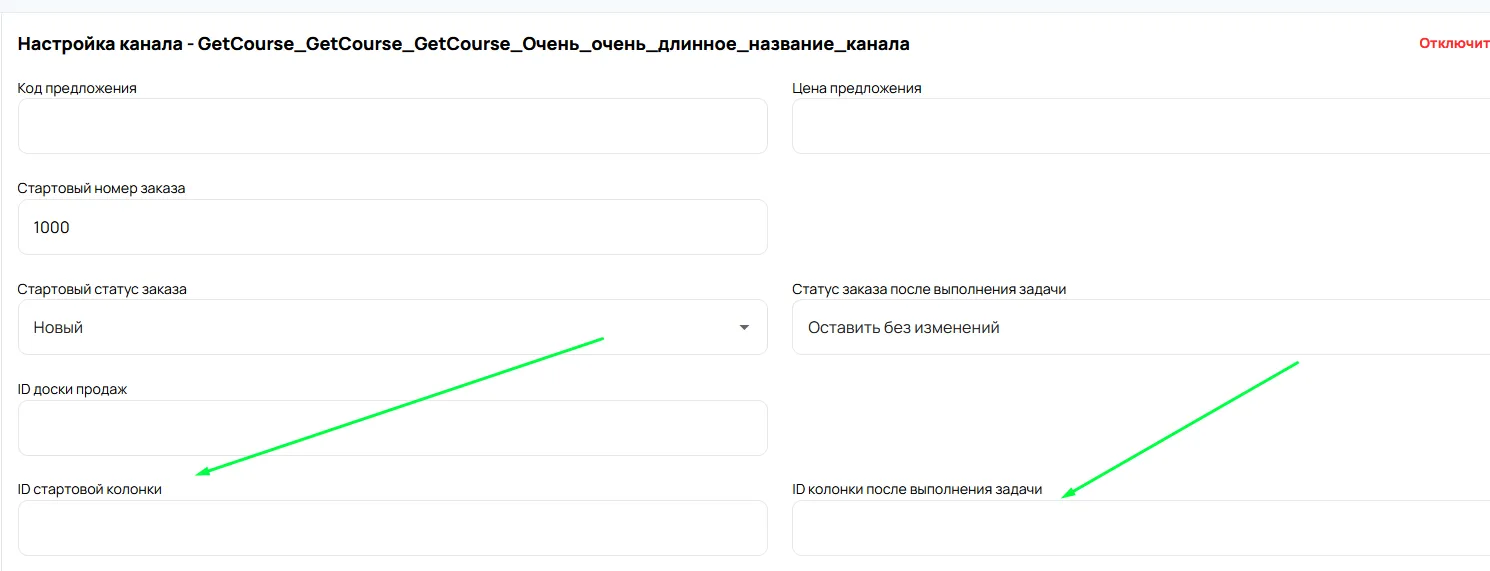
Next, you need to fill in all the fields in the list that appears.Offer code
GetCourse -> Sales -> Settings -> Copy offer code (unique offer code)
Starting order number - starting from this number, orders will be created in GetCourse on behalf of Athena. It's important that the starting number be a large number to prevent new orders from overlapping with existing ones. (Default: from 1000)
Start order status – Select the required status in which the transaction will be created(new, completed, canceled, in progress, etc.)
Order status after task completion – specify where the transaction will be sent after the communication is completed(Completed, Cancelled, Other)
Offer price – indicate the cost of the service/offer.
GetCourse -> Sales -> Settings -> Composition -> Specify and copy the price.
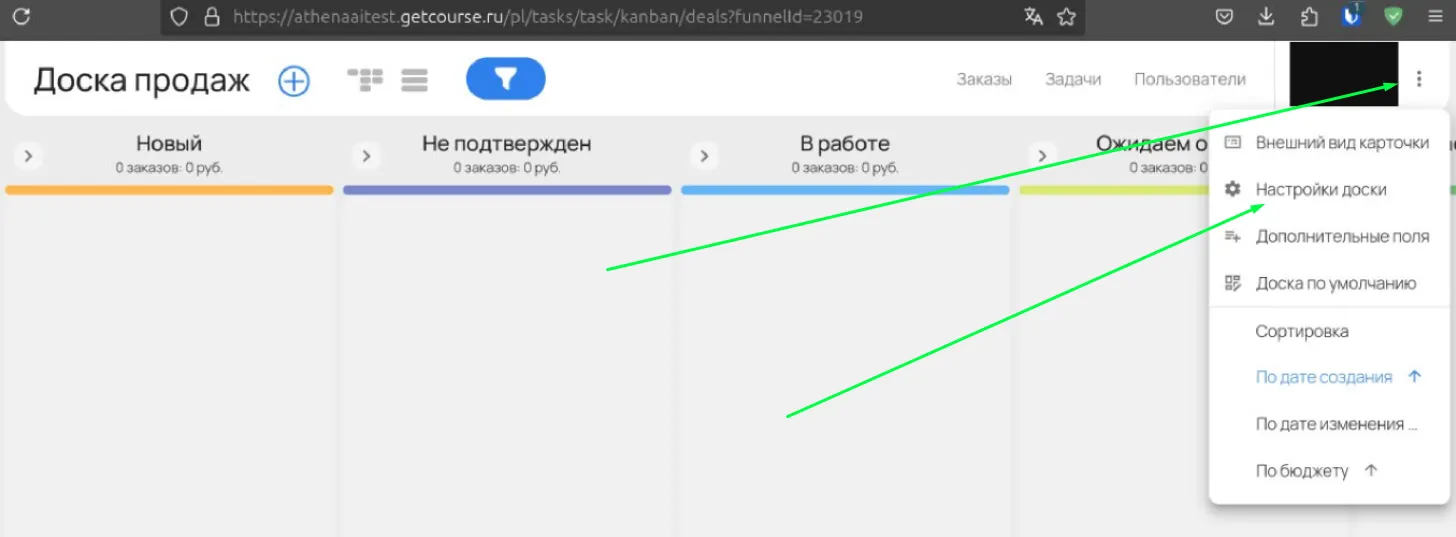
Specify the ID of the sales board, starting column, and column after completing tasks.Sales board ID:
Go to the sales board -> copy ID -> paste it into the Sales Board ID field in the integration settings
Copy to the appropriate column.
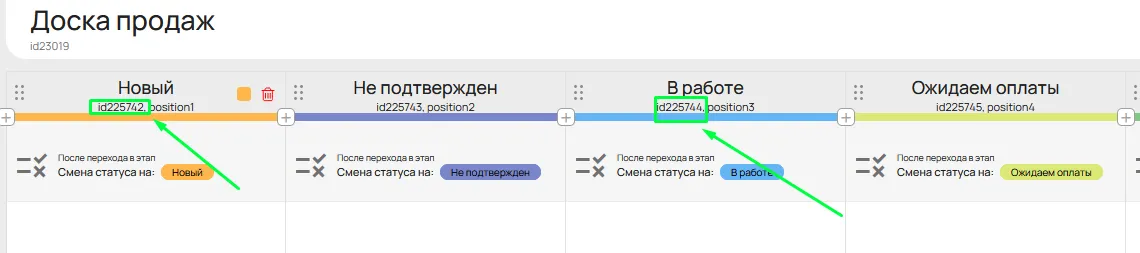
The starting column ID and the column ID after completing the task. These are taken from the board settings.
Copy the IDs of the required columns, depending on your goals.
Copy the ID into the appropriate fields in the integration settings.
Example of correctly filled in data:

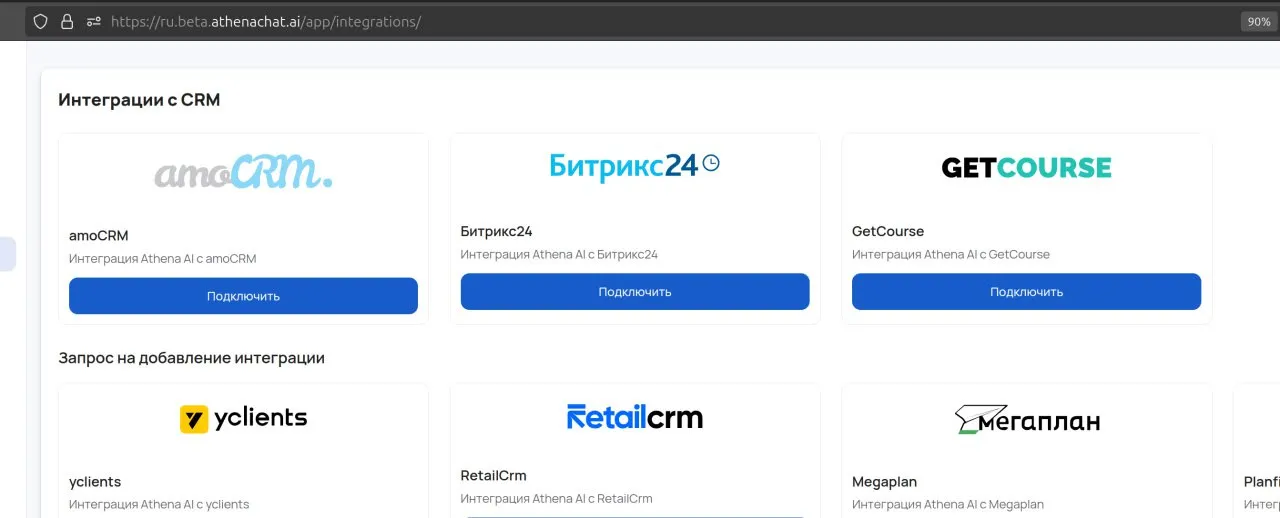
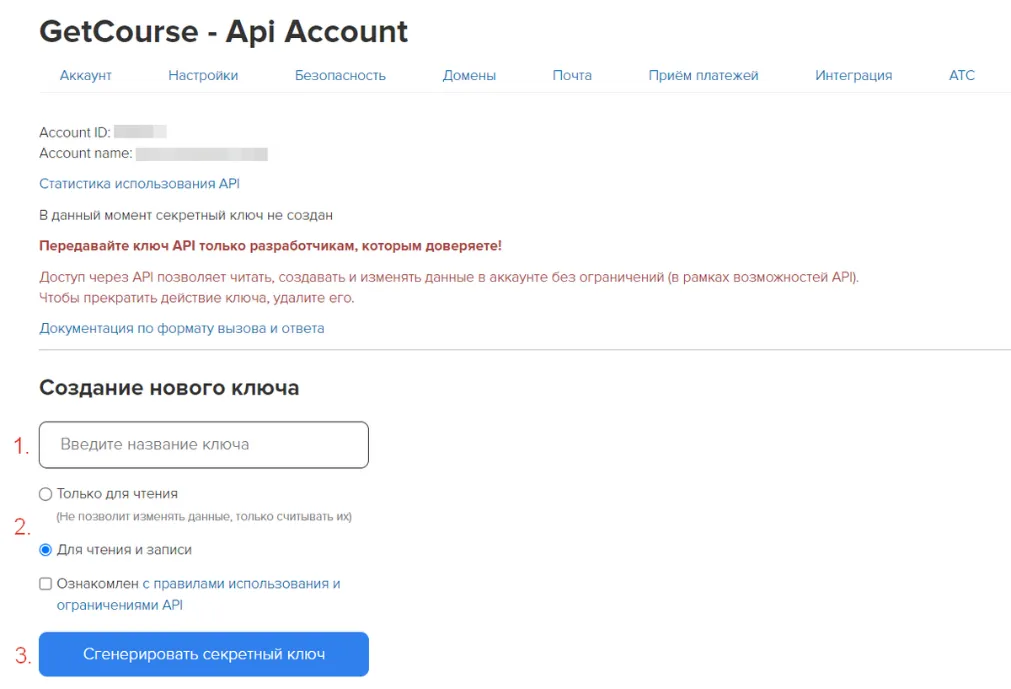
 * How to generate an API key: https://getcourse.ru/blog/1053682
 * An example of correctly filled in data: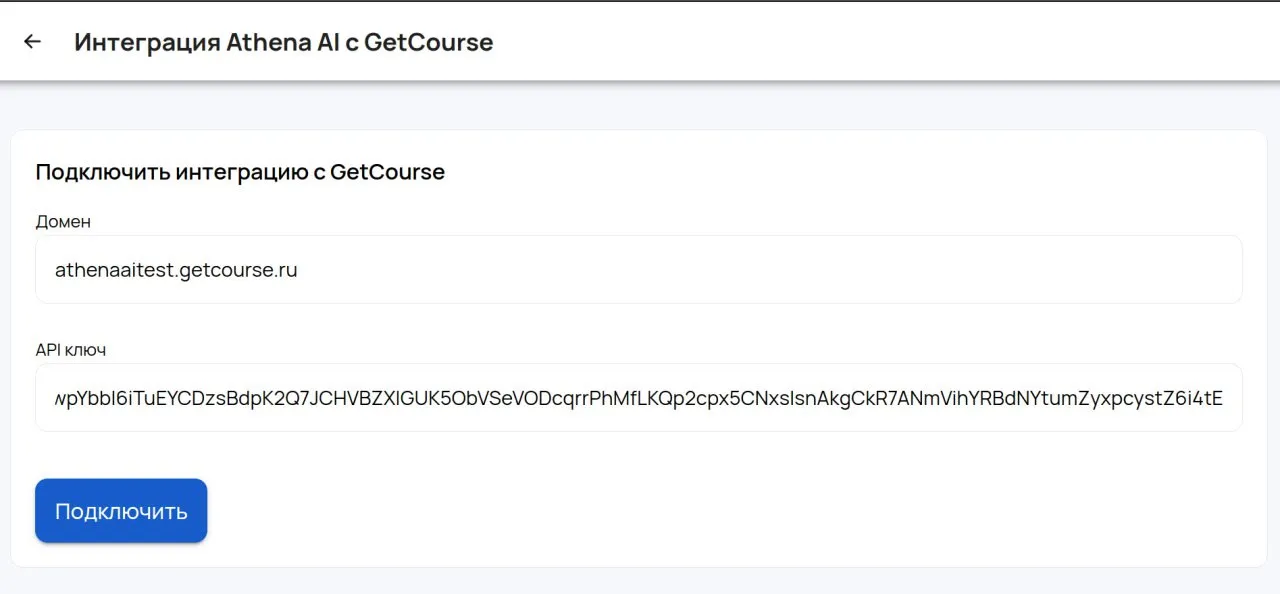
 Offer codeGetCourse -> Sales -> Settings -> Copy offer code (unique offer code)
 Starting order number - starting from this number, orders will be created in GetCourse on behalf of Athena. It's important that the starting number be a large number to prevent new orders from overlapping with existing ones. (Default: from 1000)Start order status – Select the required status in which the transaction will be created(new, completed, canceled, in progress, etc.)Order status after task completion – specify where the transaction will be sent after the communication is completed(Completed, Cancelled, Other)Offer price – indicate the cost of the service/offer.GetCourse -> Sales -> Settings -> Composition -> Specify and copy the price.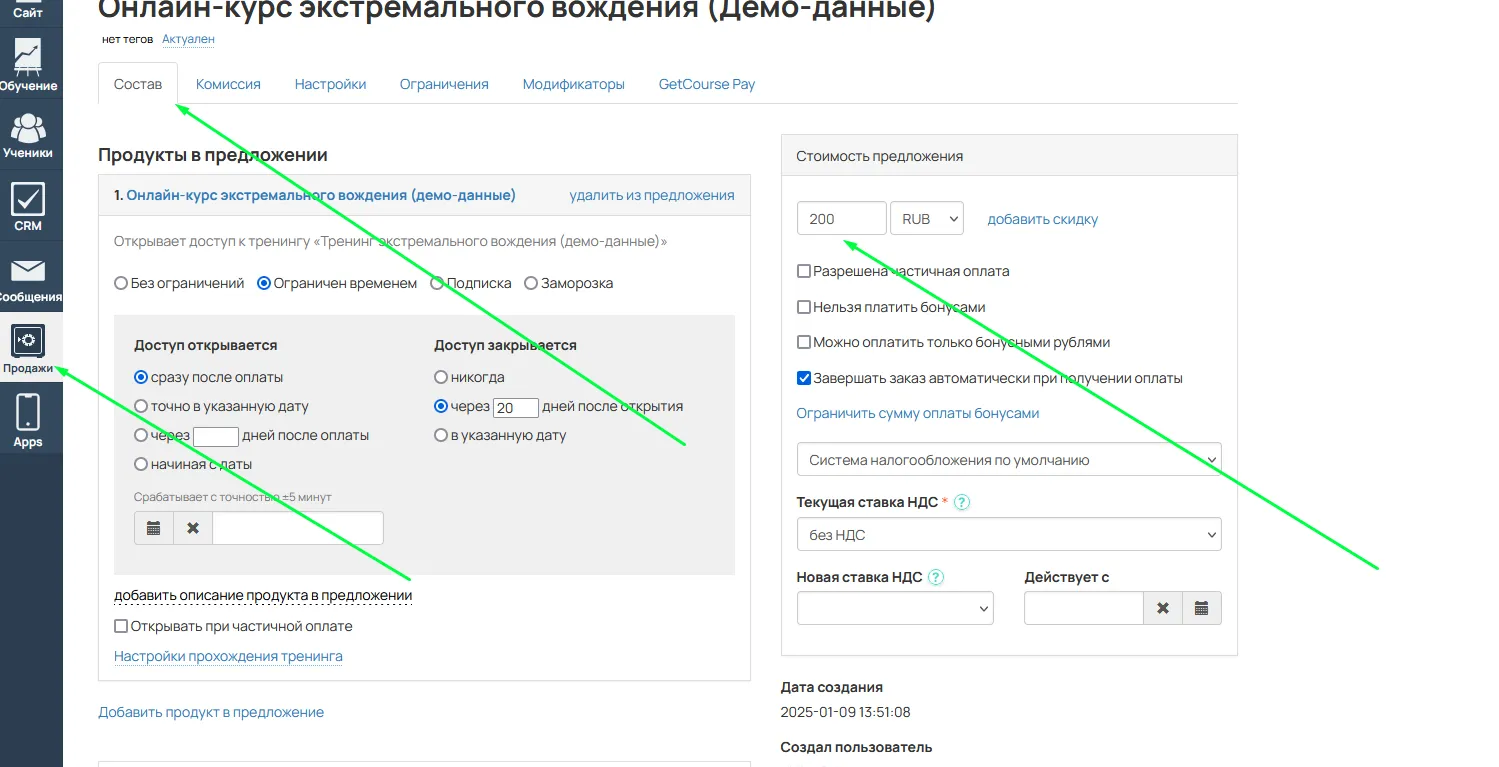
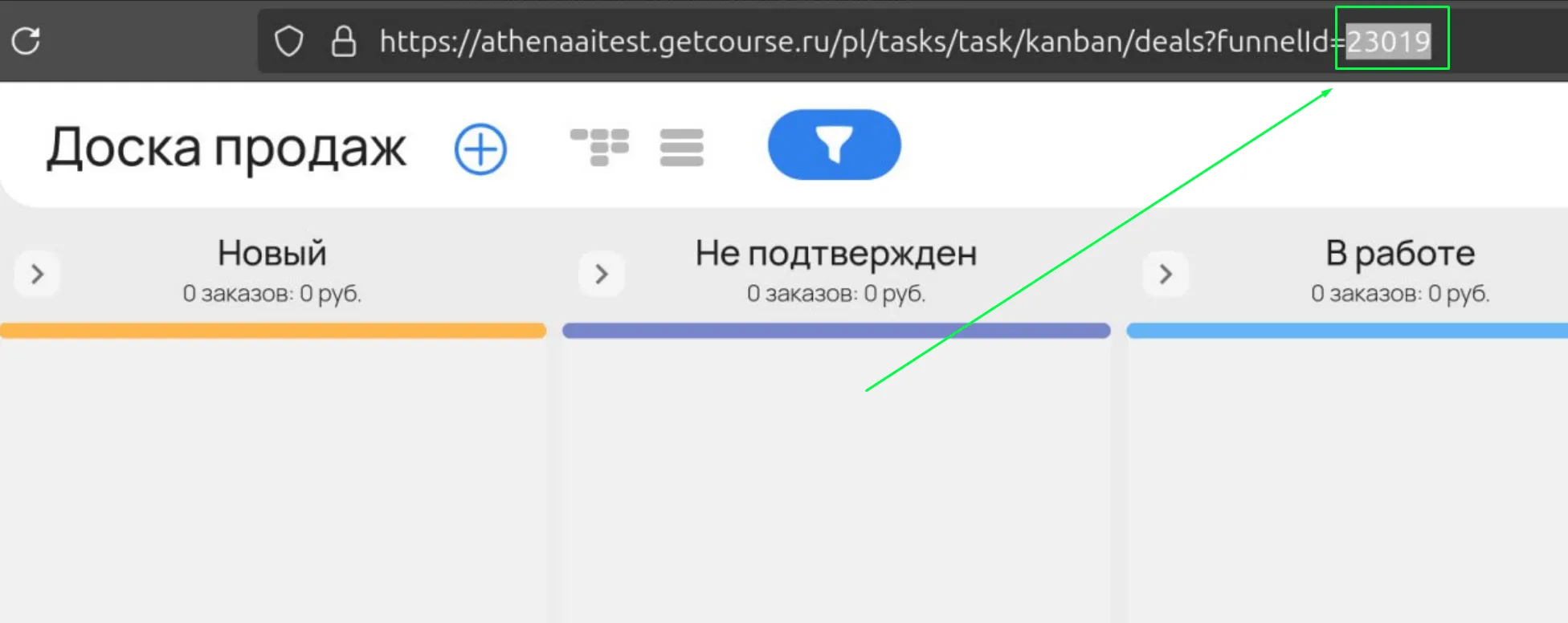 Copy to the appropriate column.
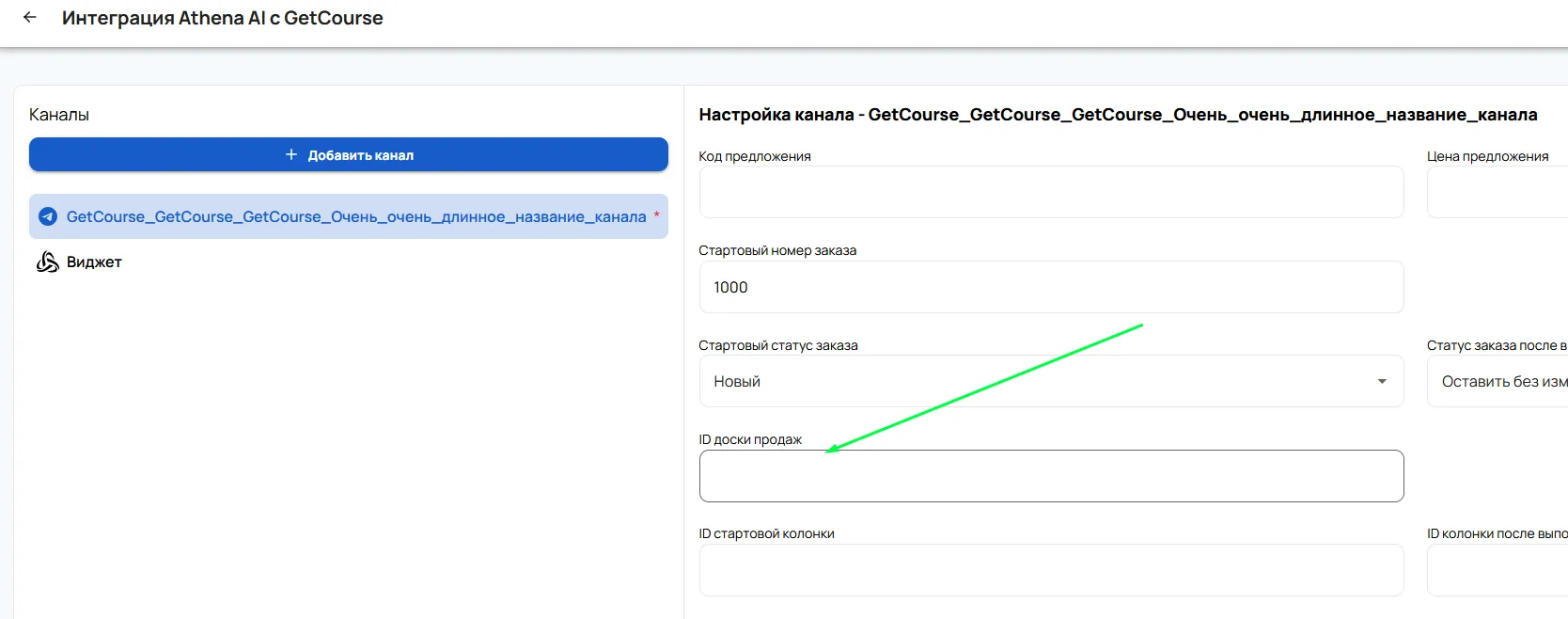 The starting column ID and the column ID after completing the task. These are taken from the board settings.
 Copy the IDs of the required columns, depending on your goals.
 Copy the ID into the appropriate fields in the integration settings.
 Example of correctly filled in data: